In short
- CMYK
- resolution 300 dpi
- bleed 2 mm
- content margin min. 3 mm from the cut line
- black should be C:0 M:0 Y:0 K:100
- grey is e.g. C:0 M:0 Y:0 K:60
- fonts converted to curves
- no ICC colour profiles
- PDF version 1.3 (Acrobat 4.0)
Dimensions
Trim size
The flyer dimensions after trimming are:
A5 - 148 x 210 mm
Document size
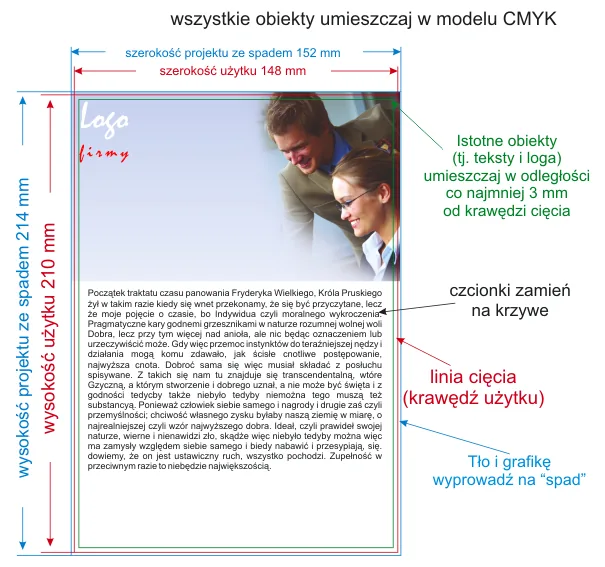
The design must be 2 mm larger on each side relative to the trim size. If any objects extend beyond the design area, they must be cropped. (See figure) i.e. for the A5 format the document size is 152 x 214 mm
Note!
Even if your design does not have a background extended into the bleed, the document size must be maintained. Therefore, the document size should be defined by a rectangle measuring 152 x 214 mm (for an A5 flyer) on the lowest layer, with no outline and no fill, or (in the case of a raster file) the design should be cropped so that it has the correct dimensions.
Template
To make designing easier, we suggest downloading the templates according to which you can prepare your job.
ulotki_A5_szablon.cdr ulotki_a5_szablon.pdf
Note! the template is a design aid; if the bleed area (dashed line) is not visible, enable View->Show->Bleed. The guide lines mark the safe area for placing content. Please do not change the page size.
Bleed
The background and all objects adjacent to the edge of the piece must be extended into the bleed beyond the trim edge. For this job the bleed is always 2 mm on each side.
Graphics
Colour model
The job must be prepared in the CMYK model. If the design contains raster images (textures, photographs), they must also be converted to CMYK. 
To obtain a full, deep black, use 100% black without any CMY components (i.e. C:0 M:0 Y:0 K:100) and save it as vector graphics. When using so-called rich black (e.g. C:50 M:50 Y:50 K:100), a colour cast in one of the CMY components may occur, and with very small fonts (or reversed-out text) or objects the edges may appear blurred.
Do not use gradients down to values lower than 5%.
Add noise to gradients to avoid banding.
Optimal resolution
The optimal resolution for raster graphics and photos is 300dpi.
Placement of objects
Important objects (photos, graphics, texts) must not be placed closer than 3 mm to the edge of the trim size and to fold lines (creases, folds).
When rotating the design by -90 degrees, check whether bitmaps rotate correctly.
Place all texts on a separate (top) layer.
When saving as CDR, group the design and convert fonts to curves.
In the file, define a page size matching the above-mentioned document size and place the design centrally on the page.
When saving a design without a (white) background as EPS, it must be bounded by a frame with dimensions matching the above-mentioned document size.
Due to cutting tolerance, the design may shift slightly relative to the trim edge. Therefore we advise against placing any kind of frames around the design, as their off-centre position on the piece may be visible. In such a case we recommend a margin of min. 5mm from the cut line.
Saving the file
File formats
Preferred: PDF (PDF 1.3, Acrobat 4.0)
Accepted: TIFF, JPG (not recommended)
Notes
If the design contains text, remember to convert it to curves or embed the fonts in the file (for PDF files) before saving.
Do not rasterize texts!!!
If the job contains more than one page, save all pages in one file. If the format you have chosen does not allow this, save two separate files named front and back. (design_front.tiff, design_back.tiff)
If you are ordering many designs with different quantities, be sure to add the quantity at the end of the file name, e.g. "company_card_100pcs.pdf" "personal_card_200pcs.pdf". Please do not enter quantities in the order comment.
If you are saving the file from Photoshop, be sure to choose TIFF; save the file as a single layer, without additional alpha channels.
For complex designs containing many layers, overlapping graphics, shadows, transparencies etc., flatten them as far as possible into a single background image, keeping texts, logos, lines and other important design elements in vector form.
Additional information
Please note that colours may differ from prints made on inkjet printers and from the image displayed on a monitor, due to differences in printing technology and colour presentation.